









Check Motherboard Model: Easy Methods for Windows & BIOS
Why Identifying the Motherboard Model Is Essential
Before jumping into the technical steps, it’s important to understand why you should check your motherboard model. This information can help you make smarter upgrade and troubleshooting decisions.
Hardware Compatibility
When upgrading your CPU, RAM, or GPU, knowing your motherboard model ensures you choose compatible components. Each motherboard supports specific socket types and RAM configurations.
BIOS and Driver Updates
Manufacturers regularly release BIOS updates to improve performance, fix bugs, or support new hardware. You’ll need your motherboard’s exact model to download the correct update from the manufacturer’s website.
Troubleshooting System Issues
If your PC faces issues like random restarts or hardware detection problems, identifying your motherboard helps in diagnosing issues accurately.
Replacement or Repair
In case of a system failure or hardware replacement, knowing the motherboard’s make and model makes it easier to find a compatible substitute.
Building or Upgrading PCs
For enthusiasts and professionals, checking the motherboard helps in comparing features like supported memory types, M.2 slots, PCIe lanes, and USB ports before making upgrades.
In short, knowing how to check your motherboard model saves time, reduces mistakes, and ensures your computer runs efficiently.
How to Check Motherboard Model
There are several reliable ways to check your motherboard details. Below, we’ll cover the most effective ones — from quick Windows commands to BIOS inspection and trusted third-party software.
Using Command Prompt (Works on All Windows Versions)
One of the easiest and fastest ways to check your motherboard is through the Command Prompt (CMD). This method works on Windows 7, 8, 10, and 11.
Steps:
- Open Command Prompt:
- Press Windows Key + R, type cmd, and hit Enter.
- Alternatively, search “Command Prompt” in the Windows Start menu and open it.
- Enter the Command:
Type the following line exactly and press Enter:wmic baseboard get product,manufacturer,version,serialnumber - View the Output:
You’ll see details like:- Manufacturer: (e.g., ASUS, MSI, Gigabyte)
- Product: (e.g., B550M-PLUS)
- Version: (motherboard revision)
- Serial Number: (unique ID for warranty or support)
- Interpret the Results:
This information is enough to identify your exact motherboard model for driver downloads or BIOS updates.
Why It Works:
WMIC (Windows Management Instrumentation Command-line) directly accesses your system’s hardware registry, ensuring accurate and official information.
System Information Tool (Built into Windows)
If you prefer a graphical interface instead of command-line tools, Windows includes a System Information utility that displays detailed hardware data, including the motherboard.
Steps:
- Press Windows Key + R to open the Run dialog.
- Type msinfo32 and hit Enter.
- In the System Summary window, look for these lines:
- BaseBoard Manufacturer
- BaseBoard Product
- BaseBoard Version
This section lists your motherboard’s manufacturer, model number, and version details.
Pro Tip:
You can also search for “System Information” in the Windows Start menu if the Run command doesn’t work.
This built-in method is ideal for beginners because it requires no downloads or complex commands — a truly easy way to check your motherboard.
Use Trusted Software Like CPU-Z
For users who want more comprehensive insights, third-party software tools such as CPU-Z offer in-depth hardware diagnostics. CPU-Z is a trusted, free program widely used by PC technicians and enthusiasts.
How to Use CPU-Z:
- Download CPU-Z from its official website: https://www.cpuid.com/softwares/cpu-z.html
- Install and Run the Program.
Once opened, it automatically scans your system’s hardware. - Go to the “Mainboard” Tab.
Here you’ll find:- Manufacturer (e.g., ASUS, MSI, Gigabyte)
- Model (e.g., ROG STRIX B550-F)
- Chipset and BIOS Version
- Graphic Interface (PCIe Version)
- Save or Export Data:
CPU-Z allows you to save a full report in HTML format — useful for documentation or technical support.
Why It’s Recommended:
CPU-Z not only helps you check motherboard details, but also provides CPU, RAM, and GPU information — making it one of the most comprehensive hardware analysis tools available.
Check the Motherboard Label Physically (Manual Inspection)
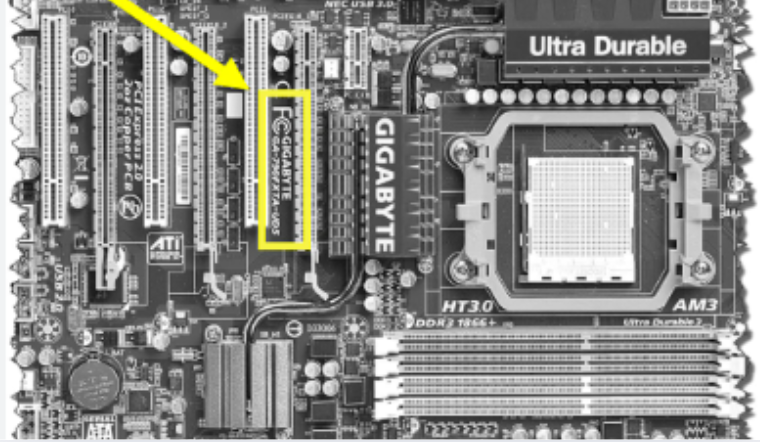
If your PC doesn’t boot or you prefer manual confirmation, you can check the motherboard model directly printed on the board itself.
What to Do:
- Turn Off Your PC and Disconnect Power.
Ensure safety before opening the case. - Open the Computer Case.
Use a screwdriver to remove the side panel carefully. - Locate the Motherboard.
The model number is usually printed near the CPU socket, PCI slots, or RAM slots. Look for bold white text. Example:- ASUS PRIME Z690-A
- MSI B450 TOMAHAWK
- GIGABYTE X570 AORUS ELITE
- Note the Manufacturer and Model Number.
Use this information to search for drivers, BIOS updates, or support documentation on the manufacturer’s official website.
Pro Tip:
Use a flashlight for better visibility and avoid touching sensitive components.
This manual inspection method is especially useful when your computer cannot start or when you want to confirm details physically.
Check Through BIOS/UEFI Interface
If Windows isn’t loading properly, you can still check your motherboard model in the BIOS/UEFI interface.
Accessing BIOS:
- Restart Your PC.
- During boot, repeatedly press the BIOS access key (depends on the manufacturer):
- DEL or F2 for ASUS, MSI, Gigabyte
- F10 for HP
- F12 or ESC for other brands
- Once inside the BIOS, look for details under:
- Main or Information Tab
- You’ll see the Motherboard Model, BIOS Version, and Serial Number.
This method works across almost all desktop and laptop systems and doesn’t require any installed operating system.
Why It’s Reliable:
The BIOS reads data directly from your motherboard firmware, so you’re viewing the most accurate and unmodified information.
Technician’s Advice on Model Checking
PC technicians often recommend verifying motherboard details using two different methods — for instance, CMD and CPU-Z — to ensure consistency.
Here’s what professionals suggest:
- Keep a Record: Save your motherboard model, serial number, and BIOS version in a note for future reference.
- Update Drivers Regularly: Visit the manufacturer’s website to download chipset, LAN, and audio drivers using your exact model.
- Avoid Unknown Tools: Stick to trusted software like CPU-Z or Speccy. Avoid third-party “system optimizers” that may contain malware.
- Cross-Verify Before Upgrading: Always check your motherboard’s compatibility list before purchasing new CPUs or RAM modules.
Troubleshooting Common Issues When Checking Your Motherboard
Sometimes, Windows tools may fail to show complete details due to firmware or permission restrictions. Here’s how to troubleshoot:
- If Command Prompt Shows Blank Fields: Run CMD as Administrator. Some system permissions can restrict hardware queries.
- If System Information Is Missing Data: Update your chipset drivers or BIOS; older systems may not fully register motherboard information.
- If CPU-Z Doesn’t Launch: Ensure you’ve downloaded the official version and temporarily disable antivirus if it mistakenly flags the installer.
These small fixes ensure a smooth motherboard checking process across different devices.
Frequently Asked Questions
What is the fastest way to check my motherboard model in Windows?
The quickest way is using the Command Prompt with this command:wmic baseboard get product,manufacturer,version,serialnumber.
It instantly displays your motherboard details without installing software.
Can I identify the motherboard without any software?
Yes. You can check it through System Information (msinfo32) or by physically inspecting the board for the printed model number.
Is CPU-Z trustworthy?
Absolutely. CPU-Z is developed by CPUID, a reputable company that provides safe, reliable hardware diagnostic tools used by professionals worldwide.
Where can I find BIOS support or updates once I know the model?
Visit your motherboard manufacturer’s official website. Navigate to the Support or Downloads section, enter your model name, and select BIOS or driver updates.
How do I check motherboard details on a laptop?
Laptop motherboards can also be identified using Command Prompt or System Information. The process is identical to desktop systems.
Can I check motherboard model on Linux or macOS?
Yes, though the commands differ. On Linux, you can use:




Post Comment